Add-ons
Setup offers two optional add-ons. To add, change or remove one, open Unishade Setup from the Start menu and choose Update or change add-ons.
Depth estimation
Ambient occlusion, depth of field, fog and other effects that need depth only work with this add-on. It works out depth from the picture with an AI model on your GPU.
It costs some frame rate. Once it’s running, the Unishade window shows Depth estimation ready.
DLSS5
NVIDIA DLSS5 through RenoDX’s add-on, for RTX cards. Its settings are in the menu’s DLSS5 tab.
The Unishade window shows which GPU it runs on. If that isn’t your RTX card, or DLSS5 stays on “waiting”, follow these steps.
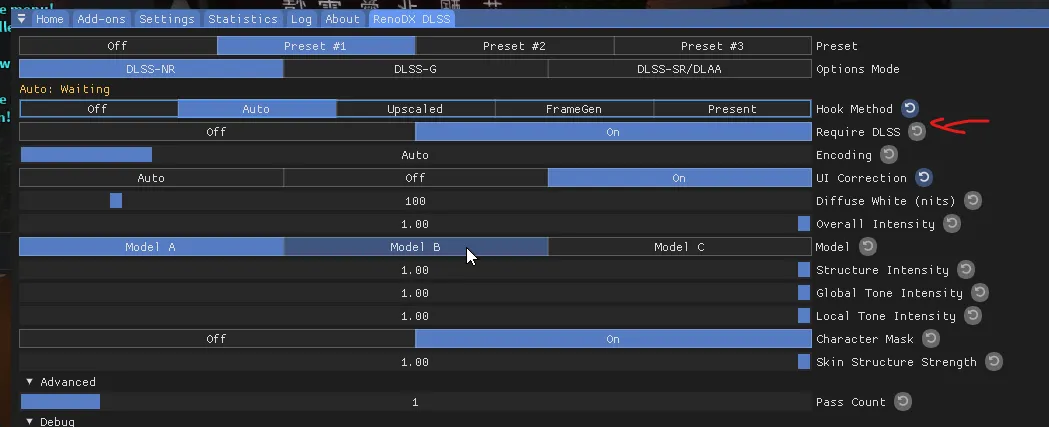
1. Turn off Require DLSS
In the Unishade menu, click the DLSS5 tab, then turn off Require DLSS.
2. Run Unishade on your RTX card
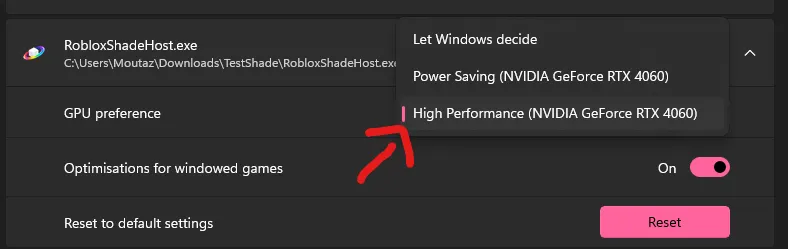
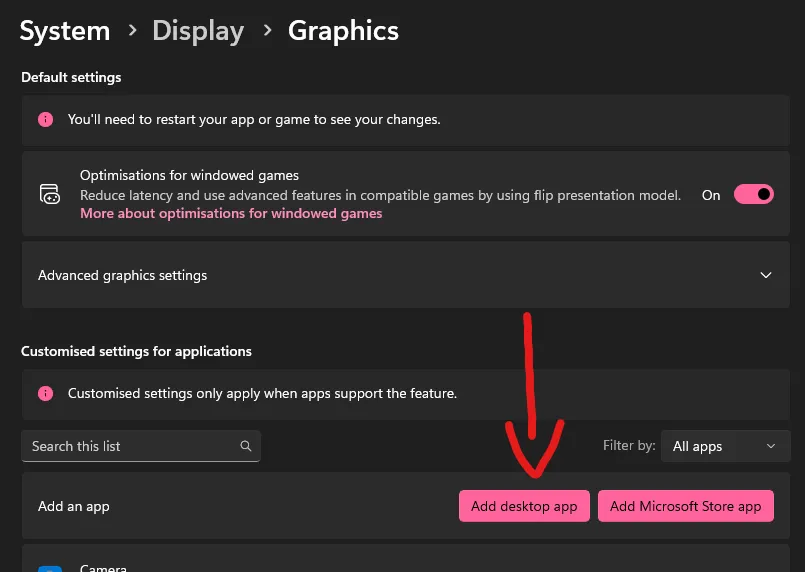
Open Windows Settings > System > Display > Graphics, click Add desktop app and add Unishade.exe from your install folder. Unless you picked another folder in Setup, that’s %LOCALAPPDATA%\Programs\Unishade: paste it into the address bar at the top of the file picker and press Enter.
Open its options and set GPU preference to your NVIDIA RTX card. Check the GPU name before saving, then restart Unishade.