
Games
Run your games in windowed or borderless mode. Once a game is saved, Unishade starts on it whenever it opens.
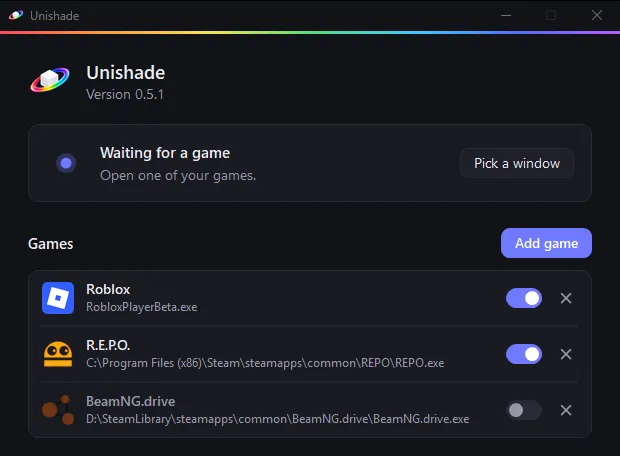
Add a game
- Open the game.
- Click Add game in the Unishade window.
- Pick the game’s window.
That’s it. If the game isn’t in the list, make sure its window isn’t minimized and try again.
If you move a game to another folder, add it again.
Turn a game off or remove it
The switch next to a game turns it off. The × removes it. Roblox is on the list from the start, so turn it off if you don’t play it.
Playing more than one
If several saved games are open, Unishade follows the one you’re playing.
Use a window just this once
Pick a window uses any open window without saving it. Unishade sticks to that window until you click Detect automatically.
Games that don’t work
Some games block screen capture or overlays, and those may not work.
NextMenu and presets