
Menu and presets
Click into the game and press Home. The menu opens right over the game. Press Home or Escape to go back to playing.
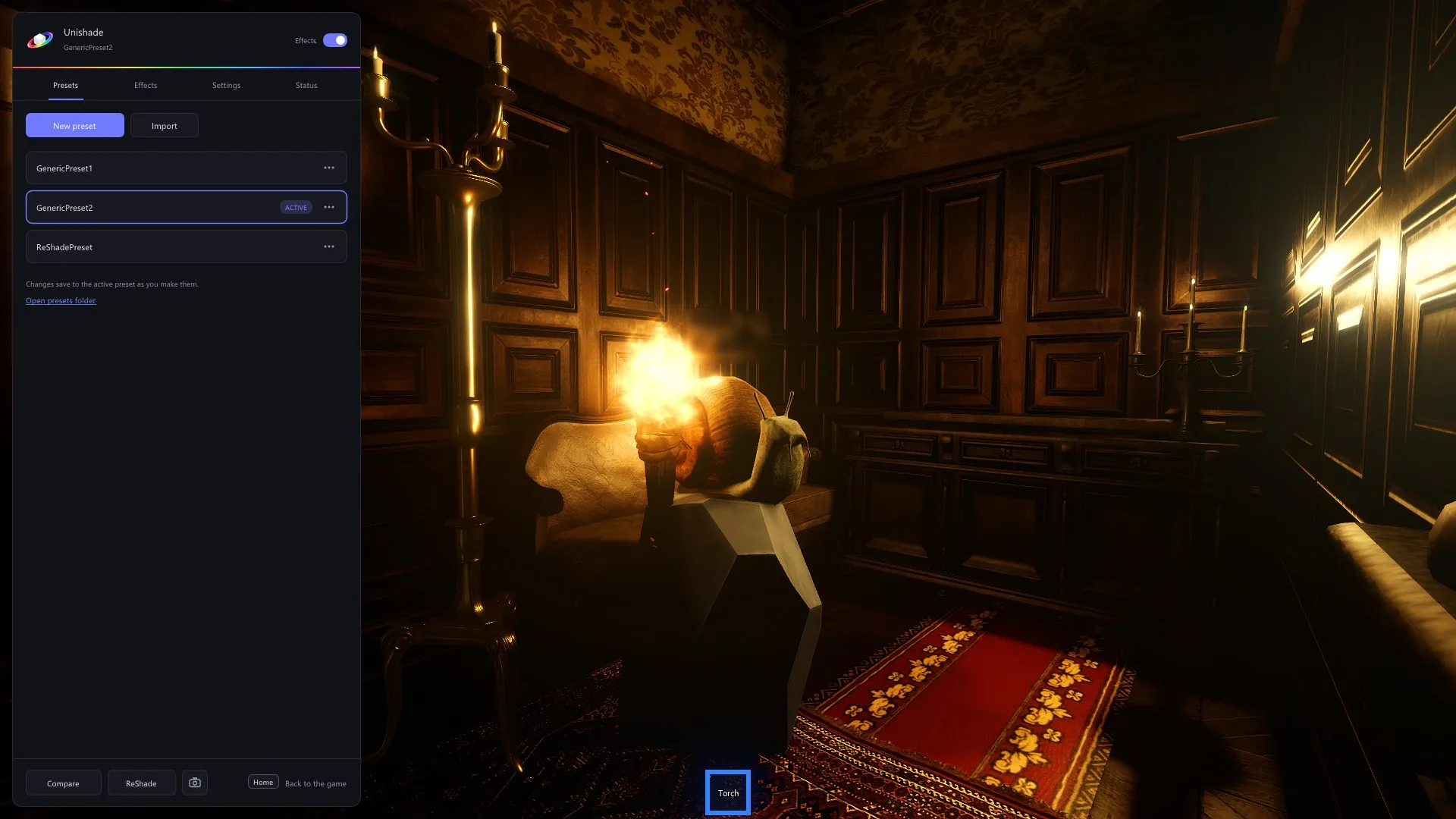
The switch at the top turns all effects off and on.
Presets
The Presets tab groups your presets by game. The game you’re playing comes first, then All games, then your other games and folders. Click a group to open or close it, and click a preset to switch to it. Presets from other games work too.
Each game remembers the preset you last used in it and switches back to it when you play that game again.
New preset starts an empty one, and Import copies preset files in. Both go to the game you’re playing. The … button on a preset duplicates, renames, moves or deletes it. Move to puts it in another game, in All games or in a new folder. Deleted presets go to the Recycle Bin.
In the presets folder, presets for all games sit in the folder itself, and each game or folder is a folder inside it, named after the game. Unishade saves each game’s icon in its folder as logo.png. Put a logo.png in any folder to show it next to that folder’s name.
Changes save to the preset as you make them. To try changes before keeping them, turn off Save changes automatically in Settings. The preset’s name then gets a dot when it has unsaved changes, the save icon at the top saves them, and Save as new puts them in a new preset. Switching presets with unsaved changes asks whether to save them.
If a preset uses effects that aren’t installed, the Presets tab names them.
Ctrl+PageDown and Ctrl+PageUp switch to the next and previous preset while you play. They skip closed groups, so other games’ presets stay out of the way until you open them.
People share presets on Discord.
Effects
The Effects tab lists every installed effect with a switch. Click an effect to change its settings, and search at the top to find one. Right-click a setting to reset it, or click Reset all to reset the effect.
Effects that are on run in the order Active lists them. Drag one onto another to move it there.
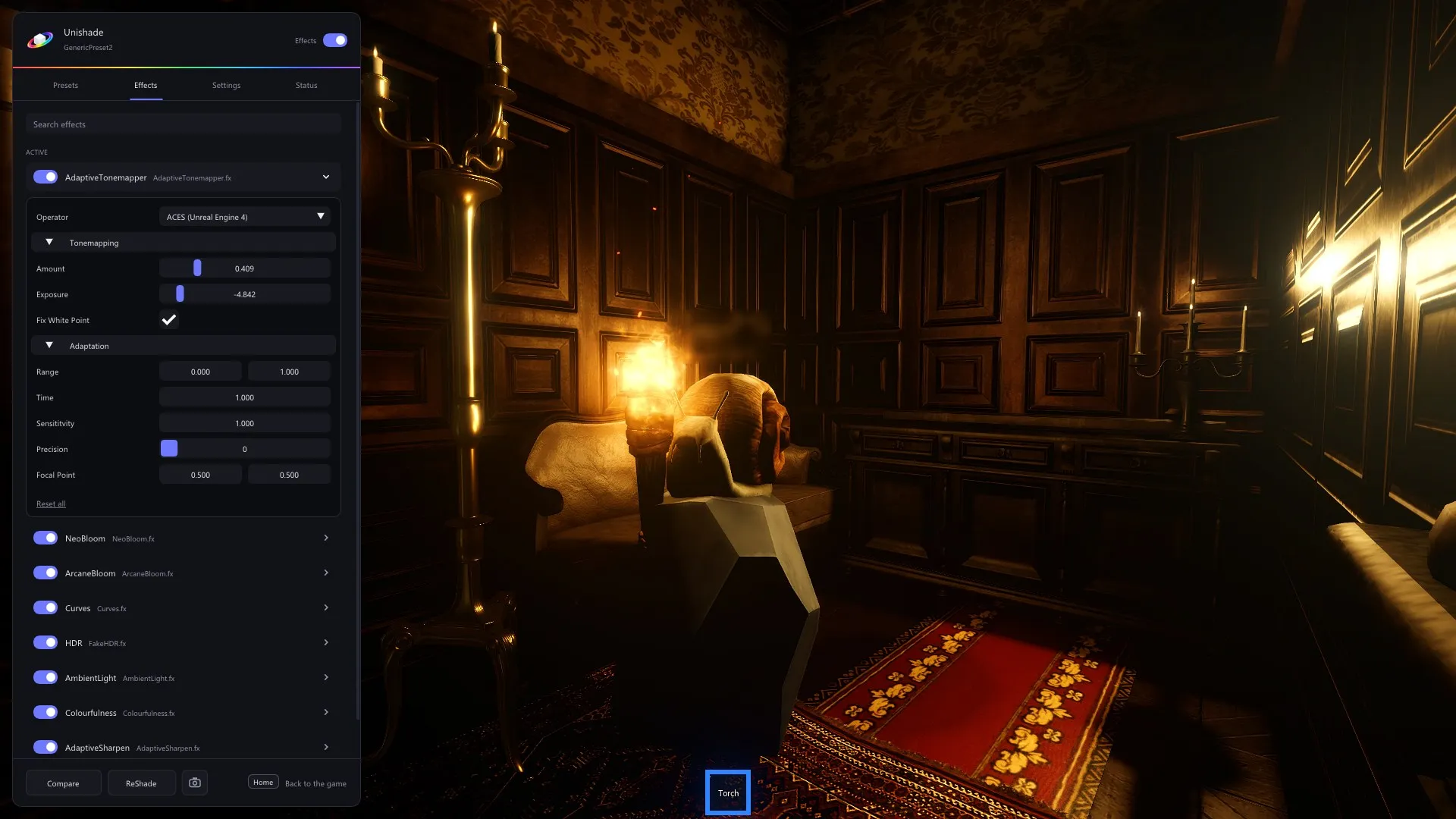
ReShade at the bottom of the menu opens ReShade’s own menu.
Compare
Hold Compare at the bottom of the menu, or hold F7 in the game, to see the game without effects.
Screenshots
Ctrl+F9 saves a screenshot, and Ctrl+F10 saves a before and after pair from the same frame. The camera button at the bottom of the menu does both and opens the screenshots folder. Screenshots never show the menu. New installs save them in Pictures\Unishade, and installs from before the rename keep Pictures\RobloxShadeHost.
Shortcuts
| Shortcut | What it does |
|---|---|
| Home | Opens and closes the menu |
| Ctrl+F8 | Turns the overlay off and on |
| F7 | Shows the game without effects while held |
| Ctrl+F9 | Saves a screenshot |
| Ctrl+F10 | Saves a before and after pair |
| Ctrl+PageDown | Switches to the next preset |
| Ctrl+PageUp | Switches to the previous preset |
Change them in Settings: click a shortcut, then press the keys you want. They work right away. Ctrl+F8 works everywhere while Unishade runs. The others only work while the game or the menu is in front, so other programs keep those keys.
NextAdd-ons